Guide
App Store screenshot captions: formulas and examples
October 28, 2026 · 5 min read
A screenshot caption has little room to explain a product. A useful line names one benefit in words a prospective user can understand before they inspect the interface.
Example caption · Fitness
build a routine that fits your week.
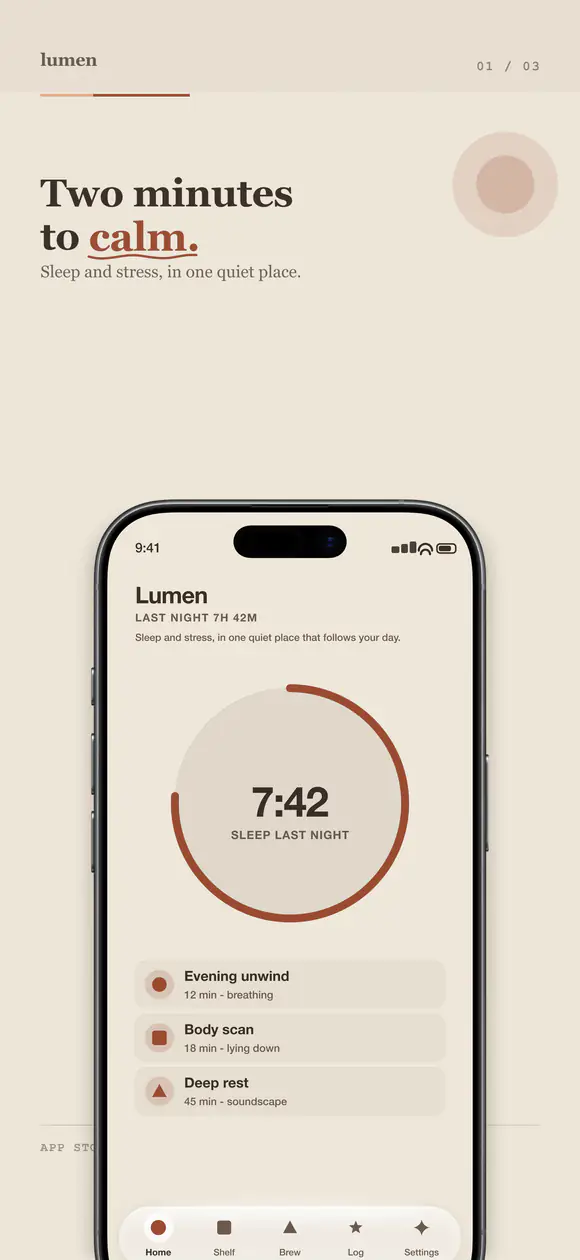
Use the example as a starting point: keep the promise specific to your product and verify it against a real screen.
Lead with a concrete benefit
Write the outcome before the feature. A fitness app might say "Plan a week of workouts" rather than "Workout planner"; a finance app can name the task its budget view makes easier. Keep the claim tied to something the app actually does.
Use a formula as a starting point
Benefit-first: "Know where your money goes." Problem-solution: "Missed routines? Build a habit that sticks." Outcome: "Turn notes into a clear plan." For an AI feature, name the input and useful result instead of relying on the word "AI."
Use proof only when it is specific
A social-proof line can help when the number or claim is current, verifiable, and allowed by the store. If you cannot substantiate it or keep it updated, use a product outcome instead of a ranking or download count.
Edit for the thumbnail
Read each caption at the size people see in search results. Remove setup phrases, jargon, and extra clauses. Keep one idea per slide, and make sure the visible interface supports the headline rather than competing with it.
Caption formulas by app category
For fitness, connect the action to a routine: "Build a plan around your week." For finance, name the decision: "See this month’s spending at a glance." For productivity, show the next step: "Turn meeting notes into assigned tasks." For an AI feature, name both sides: "Upload a receipt. Get an expense summary."
These are working drafts, not universal copy. Replace the example outcome with something the app can demonstrate, and use the exact terminology your audience understands. If the caption could fit ten unrelated apps, narrow it to a task or result that is specific to yours.
Check the complete slide, not just the line
Read the caption beside the screen capture, then hide the caption and see whether the UI still supports the claim. A line about automatic categorization needs a screen where categories are visible; a promise about planning needs a plan, not a settings page.
Keep a short copy sheet with the caption, its intended benefit, the supporting screen, and locale. That makes review and later updates easier than hunting through flattened image exports.
Turn a feature list into a slide sequence
Sort features by the user question they answer, then give each distinct question one slide. A caption about saving time can lead into a workflow; a later slide can explain sharing or offline access if that is a separate reason to choose the app.
This prevents a common copy problem: several captions all say "simple," "easy," or "fast" without showing what changes for the user. Concrete tasks make the slides easier to distinguish and the sequence easier to remember.
Localize the idea, not just the sentence
A short English phrase may rely on a pun, idiom, or cultural reference that does not carry over. Translate the intended benefit first, then ask a fluent reviewer to make the caption sound natural and check that it still fits the available space.
Keep the approved copy next to the locale and slide number. This reduces the risk of a polished translation being pasted onto the wrong screen or overwritten by a later machine-translation pass.
A quick rewrite exercise
Take a draft such as "Powerful tools for your finances" and ask what a person can do after opening the app. If the answer is "spot recurring bills," write that task in plain words and show the bill list on the slide.
Then remove words the interface already proves. The caption should add the useful interpretation, while the screen supplies the product evidence. This keeps both elements from repeating the same generic claim.
Review every line as part of the full deck
Read captions in order and look for a sequence: benefit, proof, differentiator, then supporting details. If every slide uses the same sentence structure or repeats the same benefit, vary the information instead of changing words just for variety.
Keep the approved copy with its locale and slide reference. During a later feature update, that small record makes it easier to find captions that may no longer match the interface.
Write captions from customer language
Collect phrases from support questions, onboarding interviews, and app reviews, then group them by the task people are trying to complete. Use those phrases as raw material, not as testimonials: a customer’s wording may need editing before it is clear enough for a screenshot headline.
For each candidate, note the audience, the promised outcome, and the screen that proves it. If the screen cannot support the statement, either choose a different caption or capture a more relevant product state. This keeps copy and creative review connected.
A final caption review checklist
Read each line aloud, then inspect it at thumbnail size. Remove internal product terms, unnecessary setup words, and claims that need evidence you do not have. Check line breaks and punctuation in each locale after the text is placed in the design.
Review the complete sequence for repeated promises and gaps. A set should help a new visitor move from understanding the main benefit to seeing how the app delivers it, without requiring every caption to explain the entire product.
Create a caption-ready screenshot deck
Start from a template and give each benefit its own readable slide.
Open App Snaps