Guide
How to localize App Store screenshots without duplicating designs
October 20, 2026 · 7 min read
The expensive way to localize a listing is to duplicate the design once per language, edit the headline in each copy, and export a separate file set for all of them. It works. It is also the reason most apps ship English screenshots everywhere.
One design, many captions
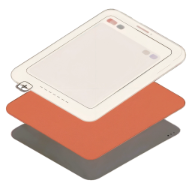
The fix is to separate the layout from the words. The layout — the canvas size, the device frame, the position of the screenshot, the palette — is stored once. The words are stored per language: a headline, a label, and any extra text on the slide each get their own value for every locale.
Switch language and only the text changes. The artwork is not copied, so there is nothing to fall out of sync, and translating a new market is a text edit rather than a design job.
What changes when you translate
The headline is the thing that changes. German and Finnish run roughly a third longer than English. Japanese and Korean use fewer characters but have no spaces, so a line break is a decision, not a wrap. The safe move is to write the headline in the target language and then look at it, rather than shrinking the English one to fit.
- Length: German headlines are about 35% longer than English ones.
- Line breaking: in Japanese, Korean, and Chinese, breaks are manual.
- Direction: Arabic and Hebrew run right to left, and the layout follows.
- Keywords: the label above the headline is a search term, and it should be the local one.
- Register: direct English copy can read as blunt in German, and machine translation makes it worse.
Machine translation is a draft
Machine translation of a ten-word headline is usually fine, and machine translation of a whole listing is usually not. The problem is that store screenshots are where bad translation is most visible, because there is no surrounding context to carry the meaning.
The practical workflow is to machine-translate everything once to get past the blank page, then hand-edit the headlines. The important part is that the hand-edited version must not be overwritten by the next translation run — which means keeping manual wording separate from the machine draft, per field, per locale.
The export
Each locale in App Store Connect and Play Console carries its own graphics, so a localized listing means one export per language. Naming those files by hand is where the mistakes happen, so the export should be named for the locale and the slot, and grouped into a folder per language.
Start a localized deck
39 store locales, RTL for Arabic and Hebrew, and one project instead of a folder per language.
Open App Snaps